
Sweep The Moon Meteor Merchant: Stock, Prices and Deployment
Last updated:
The Meteor Merchant brings temporary robot and drone offers to Sweep The Moon. Check the countdown and your stock, choose a unit, and put it to work on the dust.
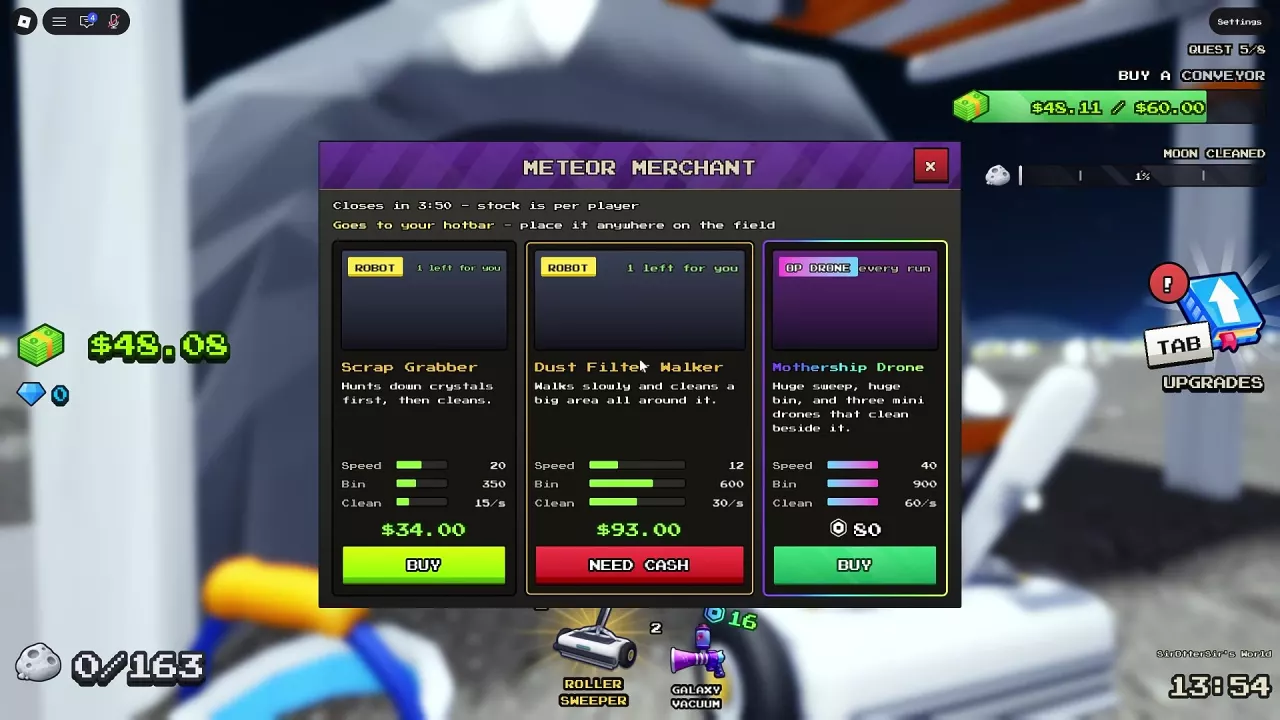
Shop During the 240-Second Visit
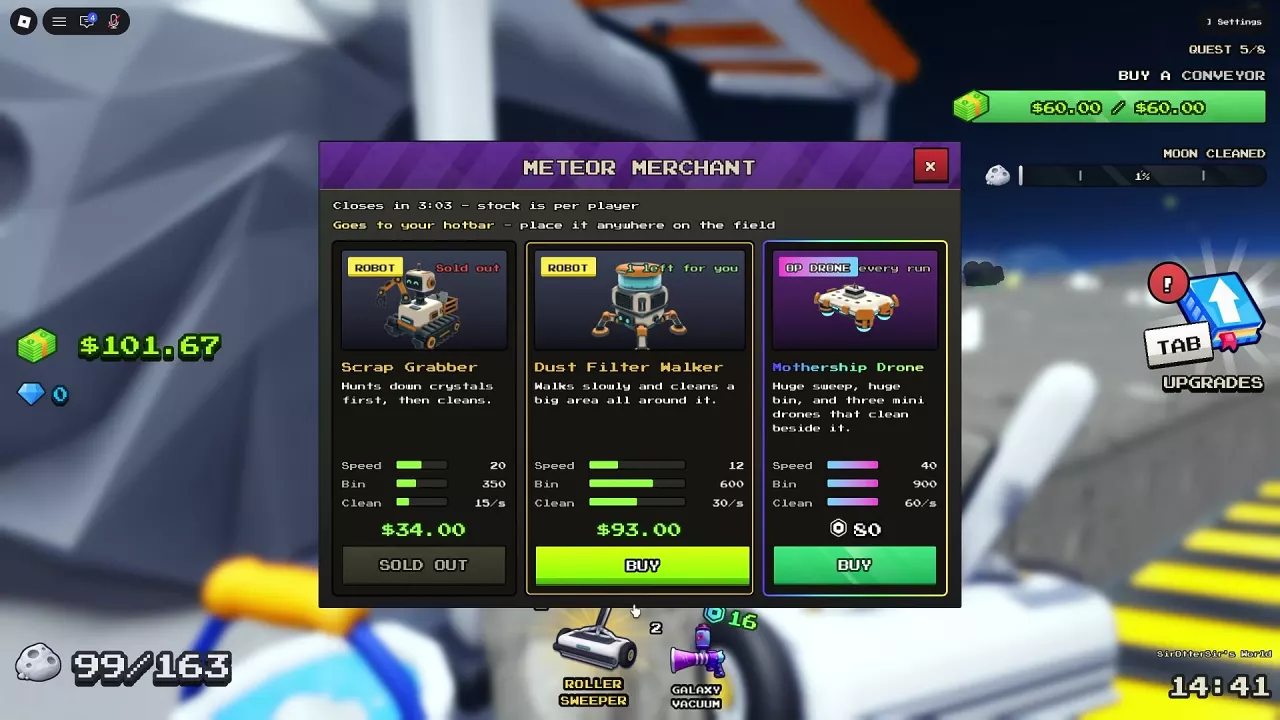
When the arrival announcement appears, go to the Meteor Merchant and press E to open the shop. Check the remaining countdown, available offers, and price before buying.
Stock is tracked separately for each player. Some robot offers show one available for you; after you buy that unit, its listing can show Sold Out. Offers differ between visits, so check the current shop for the unit you want.
Robot and Drone Offers
These are merchant offers and their listed prices. They do not all appear in every visit.
| Unit | Price | Use |
|---|---|---|
| Scrap Grabber | 34 Cash | Searches for crystals before cleaning. |
| Dust Filter Walker | 93 Cash | Walks slowly and cleans a large area around itself. |
| Comet Crawler | 22 Cash | Fast robot vacuum with a large bin for ordinary cleaning. |
| Sweep Buddy | 26 Cash | Automatically sweeps dust after deployment. |
| Dust Vac Drone | 28 Cash | Flies and vacuums dust along its route. |
| Mothership Drone | 80 Robux | Cleans a broad area with three accompanying cleaning drones. |
Choose an Offer Before Buying
- Ordinary cleaning on a budget: Choose Comet Crawler when available. At 22 Cash, it has a listed cleaning rate of 25/s and a 400-Dust bin. Sweep Buddy is an alternative if it is in stock instead.
- Crystal searching: Pick Scrap Grabber, which looks for crystals before cleaning.
- Cleaning around the unit: Pick Dust Filter Walker if you can afford its 93 Cash price and want its broad surrounding coverage.
- A Cash-priced flying cleaner: Pick Dust Vac Drone to vacuum along its flight path.
- Broad cleaning with Robux: Pick Mothership Drone for its wide sweep and three small assisting drones.
For the full comparison of Cash robots, see the merchant robot tier list. Compare merchant and crew units in the robot and drone guides.
Place Your Purchase on Dust
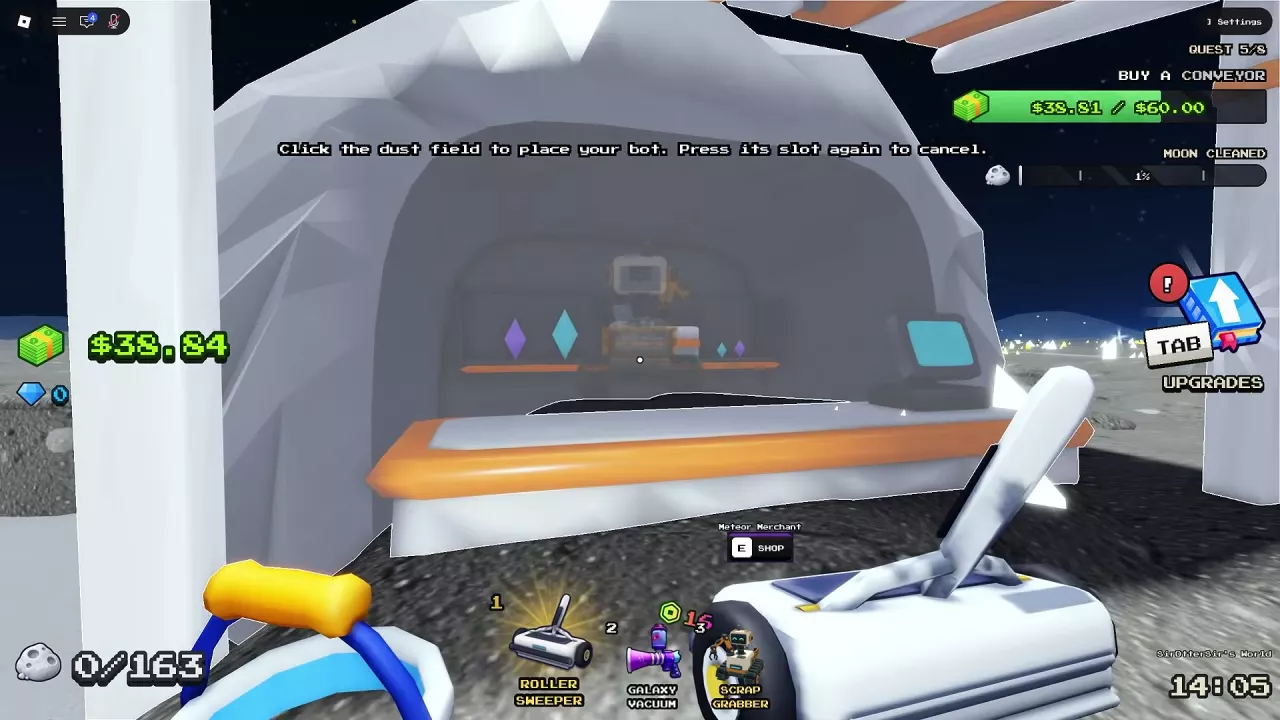
- Buy an available robot or drone from the merchant. The purchase goes into your hotbar.
- Select the unit’s hotbar slot.
- Click a dust-covered area to place it. The unit then cleans automatically while you continue playing.
To cancel placement before placing the unit, press the same hotbar slot again. A Sold Out shop listing describes the available stock; a purchased unit still needs to be placed from your hotbar to start working.
Related guides
Sweep The Moon Events: Encounters, Supplies and Timed Shops
Recognize Sweep The Moon events, open Express Delivery crates, and respond to UFOs, raids, merchants and timed Arcade visits.
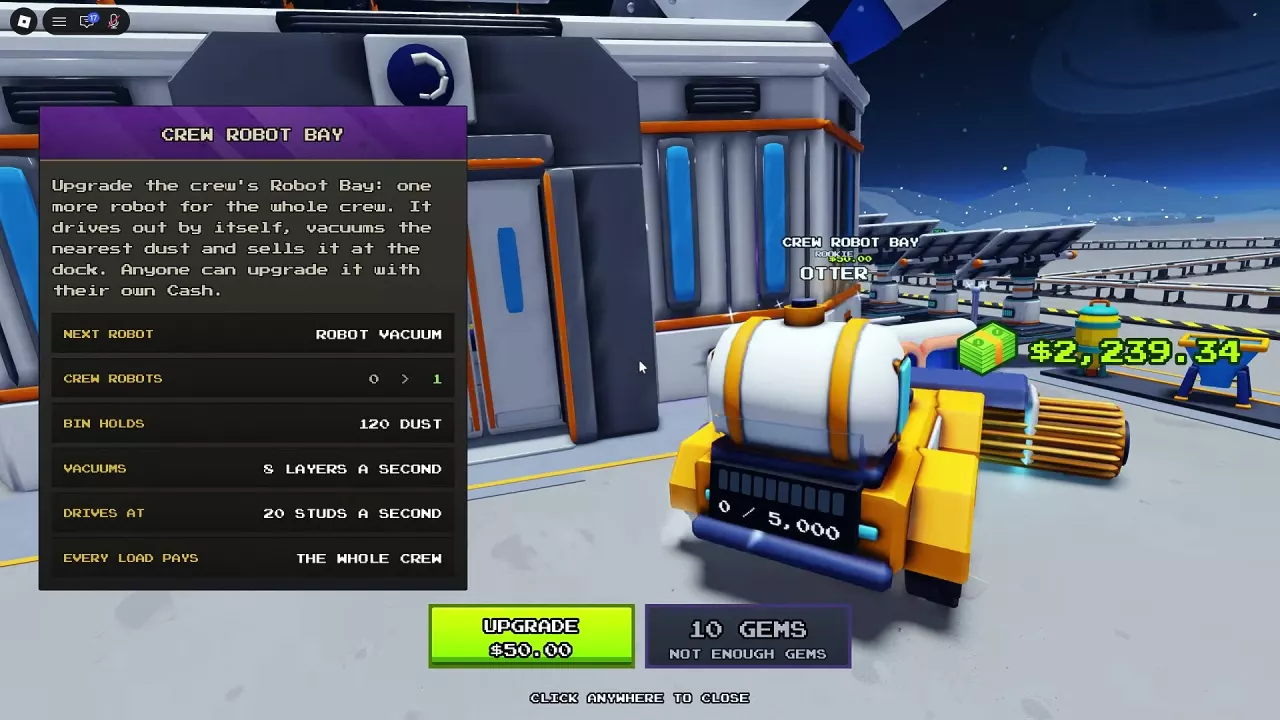
Sweep The Moon Robots: Crew Bay, Prices and Deployment
Find Sweep The Moon robots, compare their jobs, expand Crew Robot Bay to eight units, and deploy merchant or Alien Robots from your hotbar.
Sweep The Moon Merchant Robot Tier List for Cash Cleaning
Compare Sweep The Moon merchant robots by Cash price, cleaning stats and behavior. Pick Comet Crawler or a specialist, then buy and deploy your robot.
Sweep The Moon Drones: Crew Pad, Prices and Best Uses
Compare Sweep The Moon drones, expand the shared Crew Drone Pad to eight, and learn how to buy and deploy merchant drones.